
Libby quick-start guide
Explore the following key topics and tips about getting the most out of Libby.
Set up the app
 Use a supported device or browser
You can download the Libby app on your mobile device or use Libby in your computer's web browser.
You can download Libby on:
- iOS 10+ (get it from the Apple App Store)
- Android 7.1+ (get it on Google Play)
- Newer Fire tablets (get it from the Amazon Appstore)
If you have a Windows computer, Mac computer, or a Chromebook, you can use Libby in your web browser at libbyapp.com. We suggest using the latest version of Chrome, Safari, Firefox, or Edge.
Add your library card
When you open Libby for the first time, follow the prompts to find your library and add your library card. If you have more library cards, you can add them to Libby at this point, too.
If you have trouble adding your library card, you'll need to reach out to your library. When prompted, tap get in touch or ask your library for instructions and contact information.
Learn more about adding library cards.
Tip: Need a library card? Your library might offer instant digital cards in Libby. If so, you'll see an I Would Like A Card option below the Sign In With My Card button. If they don't offer this option, visit your local library's website or a branch near you for help signing up.
Explore the app
Use the navigation bar in the footer to access key areas of Libby, like your Library and Shelf.
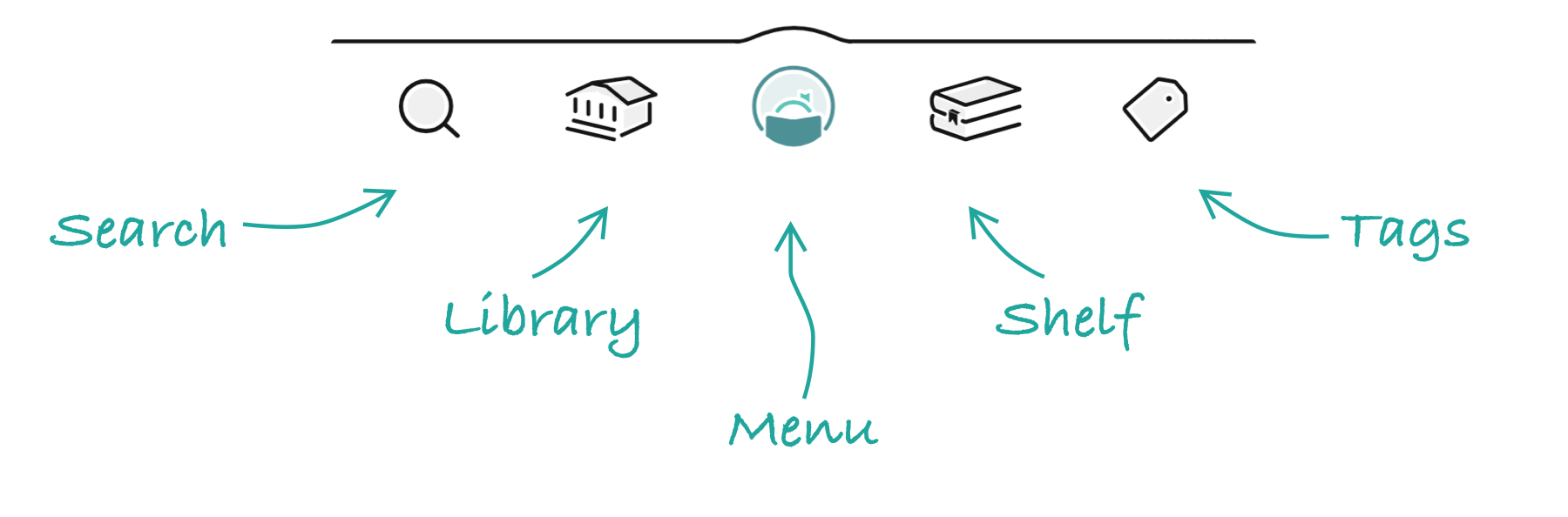
| Name | Icon | Description |
|---|---|---|
| Search |

|
Search for books, audiobooks, and magazines at your library. |
| Library |

|
Browse lists, campaigns, and guides created by your library. |
| Menu |

|
Switch libraries, add library cards, set up notifications, access Inspire Me, customize your settings, and get help. |
| Shelf |

|
See your loans, holds, and magazines from all your libraries, view your borrowing history on the timeline, and check your notices to see important info about your loans, holds, and tags. |
| Tags |

|
See the tags you've created and all the titles you've saved to each one. |
Tip: If you'd like, you can turn on labels for the footer icons. This setting is only available if you use Libby in English.
Customize Libby
Here are a few settings you might want to customize right away.
Update your download settings
In the Libby mobile app, you can stream titles using an internet connection or download them to enjoy offline. By default, all book and audiobook loans are downloaded for offline use when you have a Wi-Fi connection.
To customize your download settings in the mobile app, open the Menu, then tap Downloads (under "Settings").
Notes:
- The download settings don't apply to magazines. Magazines are never automatically downloaded.
- These settings aren't available at libbyapp.com. Website users always need an internet connection to use Libby.
Set up notifications
Libby can notify you about your loans, holds, and magazine subscriptions with push, in-app, or email notifications.
By default, the Android and iOS mobile apps use push notifications, and libbyapp.com and the Fire tablet app use email notifications.
To customize your notification settings, open the Menu, then tap Notifications (under "Settings").
Filter your library's catalog based on your interests
By default, your library's entire Libby catalog is shown in the app. Use these options to help you find what you want to read more quickly.
Using content controls
With content controls, you can filter titles in Libby based on their audience categories. To set up content controls, go to Menu > Content Controls > Audience and choose an audience preset and adjust other options as desired.
For example, if you're setting up Libby for a child, choose the Libby for Kids preset to only see titles for juvenile and young adult audiences.
Learn more about content controls, available presets, and other example scenarios.
Using pinned filters
Pin filters to automatically filter what appears while browsing and searching. You can filter based on format, availability, audience, language, and if the book can be read on Kindle devices (U.S. libraries only).
For example, if you're only interested in audiobooks in Spanish, pin the audiobooks format filter and the Spanish language filter.
Pinned filters are active until you remove them.
Set up more devices
If you want to use Libby on multiple devices, you can keep them all in sync by setting up Libby on your other devices using a recovery passkey or setup code.
Back up your data
We recommend creating a recovery passkey to back up your Libby data. Recovery passkeys are stored in your device's password manager.
If you reset Libby or install Libby on another device, you can use your passkey to quickly recover your library cards, loans, holds, and tags.
Note: If your device doesn't support passkeys, you can use a setup code to copy your data to another device.
Find, borrow, and enjoy
Browse the library
Tap Library to start browsing your library's collection. There you'll find:
- Filters to browse new, popular, and currently available titles in your library's catalog.
- Curated lists of titles with common themes, like summer reading books, autobiographies, or library staff picks.
- Featured titles chosen by your library, or by staff librarians at OverDrive (the makers of Libby).
- Guides featuring segments of the library's catalog, like kids' content, magazines, language-specific collections, and more.
- Extras, which are additional learning or entertainment resources from the library. These may include providers like Kanopy, Craftsy, and others. Learn more about Extras.
Search for titles
- Tap Search in the footer.
- Enter your search term in the search bar.
Tip: To search for an exact phrase, put your search terms in quotation marks.
- Tap
 , search, or Enter (depending on your device) to see all results, or tap a search suggestion.
After searching, you can sort and filter your results:
- In a list or search results, tap
 to apply filters.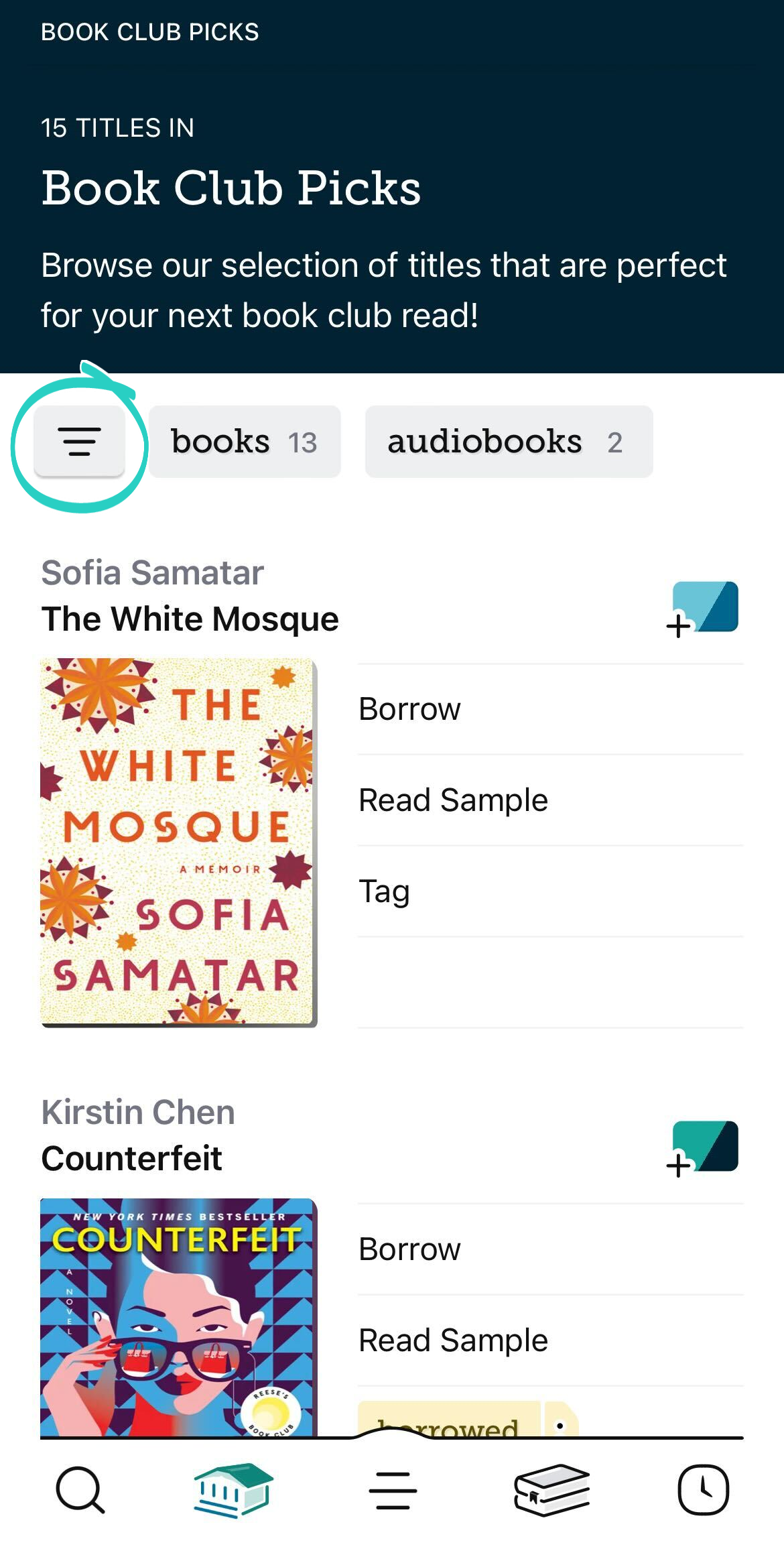
- Adjust your filters and default sorting option, then tap Show Titles.
Tap the applied sort or filter to:
- Quickly change it.
- Pin it.
- Remove it.Note: Not all filters can be removed (or added).
Borrow titles and place holds
When you find a title you're interested in, tap it to see its details screen. You'll see a brief description, the title's format, the number of copies in the library, and more.
To borrow an available title:
- Tap Borrow.
- On the confirmation screen, tap the loan period next to "Borrowing for..." if you want to change it.
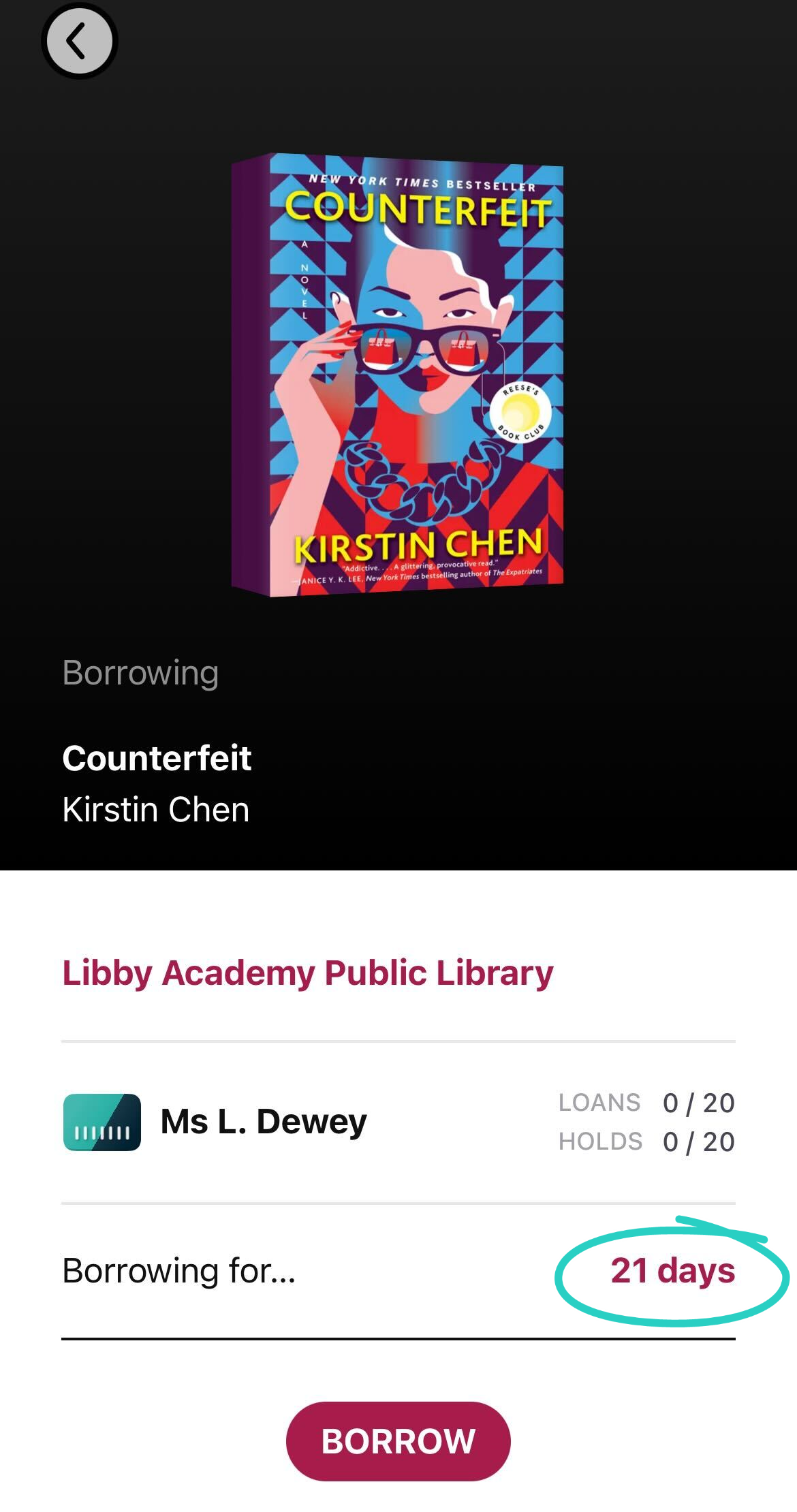
- Tap Borrow again to check out the title.
If no copies are available, tap Place Hold to be added to the title's wait list. You'll receive a notification when your hold is ready to borrow.
Read books and listen to audiobooks
To see your borrowed titles, tap Shelf , then Loans at the top of the screen.
- To read a book: Tap Read With... and choose whether you'd like to read it in Libby or Kindle (U.S. libraries only).
- To listen to an audiobook: Tap Open Audiobook.
Read magazines
If your library offers magazines, they're always available and don't count against your borrowing limit.
You can search for magazines on the Search screen and browse your library's curated lists of magazines on the Library screen like you can with books and audiobooks.
When you find a magazine you're interested in, tap Open Magazine to start reading.
To browse all magazines at your library, visit the Newsstand from the Magazine Rack on your Shelf .
Keep track of titles you want to read
In Libby, you can save titles to tags to easily find them again.
To save a title to a tag, tap Save  while browsing your library or on a title's details screen, then select or create a tag.
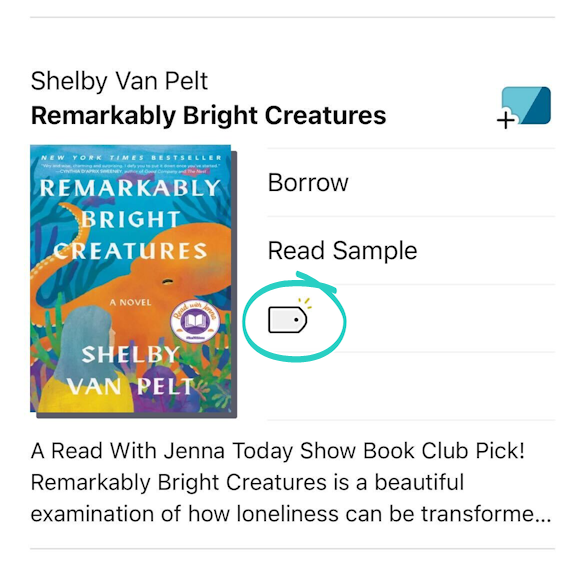
To see all titles you've saved to a tag, tap Tags in the footer.
Share interest in titles your library doesn't offer
If you discover a title your library doesn't offer, it will have a Notify Me button instead of a Borrow button.
When you press this button and add the title to a Notify Me tag, you'll let your library know you're interested in the title and be notified if it's added to the collection.
Important note: Not all libraries offer this feature.