
Libby Help
Why can't I add or remove some filters?
Some filters can't be added or removed from lists or search results in your library's collection.
Filters that can't be removed have a purple background and a funnel icon  .
.
If you're unsure about a filter, tap it to learn more. If the filter can't be removed, the pop-up in Libby lets you know.
You can always tap Library  to go back to your library's home screen or tap Search
  to look for something else.
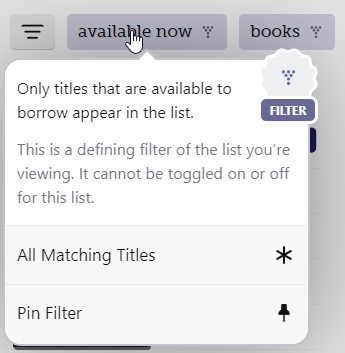
Common scenarios where filters can't be added or removed
The list is defined by specific filters
Your library may create lists based on specific filters. For example, a "New & Available Now - Books" list may use "available now" and "books" as defining filters, which can't be removed.
You can't add filters that are incompatible with those defining the list (like "audiobooks," in this example). You also can't add filters that conflict with filters you've pinned.

Your search criteria match your library's offerings exactly
If all of your search results have the same format or language, filters matching your results (e.g., "English" or "books") are automatically applied and can't be removed from the results.
You'll also see this behavior in lists when all titles are the same format, subject, audience, etc.
Your library doesn't own what you searched for
If deep search is available at your library, search results may have the "deep search" filter automatically applied to include titles that your library doesn't own. This happens when your search would otherwise get no results. In these circumstances, the "deep search" filter can't be removed.
You also can't apply the "deep search" filter when one of the following is true:
- Your library has deep search turned off.
- Your search has more than 100 results.