
Libby Help
Setting up content controls in Libby
You can use Libby's content controls to manage what titles you see, search for, borrow, and place on hold from your libraries. To access content controls, go to Menu > Content Controls and choose Audience or AI Contributions.
Content controls are useful in a variety of situations. Explore the sections below to learn how they could be helpful for you.
You want Libby to only show audiobooks with human narrators
If you want to hide audiobooks narrated by AI, go to the AI Contributions controls, then choose the Human narrators only preference (under "Audio"). By default, this preference only hides titles when using deep search (i.e., when you're looking at titles your current library doesn't own). If you want to hide AI narrators from all library lists and searches, turn off the Deep search only toggle under "Where to apply filters."
You want Libby to only show titles intended for children
If you want Libby to only show titles intended for children, go to the Audience controls, then choose the Libby for Kids preset. You may want to configure Libby this way if you plan to let a child use the app unsupervised.
This preset shows only juvenile and young adult titles on the Library  and Search
  screens. This preset doesn't hide any titles on the Shelf
  or Tags
  screens or prevent current loans from being opened.
If you have a family device with multiple library cards added to Libby, you may want to consider:
- Removing adults' library cards to remove adult-oriented loans from the Shelf.
- Locking your selected content controls with a passkey so only you can change them.
- Disabling the "young adult" content toggle for very young readers (ages 0-12).
You're an adult reader only interested in titles intended for adults
If you're an adult reader only interested in reading titles for adults, go to the Audience controls, then choose the Libby for Grown-ups preset.
This preset hides all titles in juvenile and young adult audience categories on the Library and Search screens.
If you also enjoy young adult titles, enable the ...but allow young adult content! toggle.
You're an adult reader who doesn't want to see or read mature content
If you're an adult reader who doesn't want to read mature content, use the Libby for Everyone preset (the default preset for Audience controls).
This preset won't hide any content at your libraries. However, in the "Mature Content" section, you can turn off the Allow in deep search, Allow samples, Allow loans & holds, and Show cover images toggles to help minimize the mature content in your library's collection.
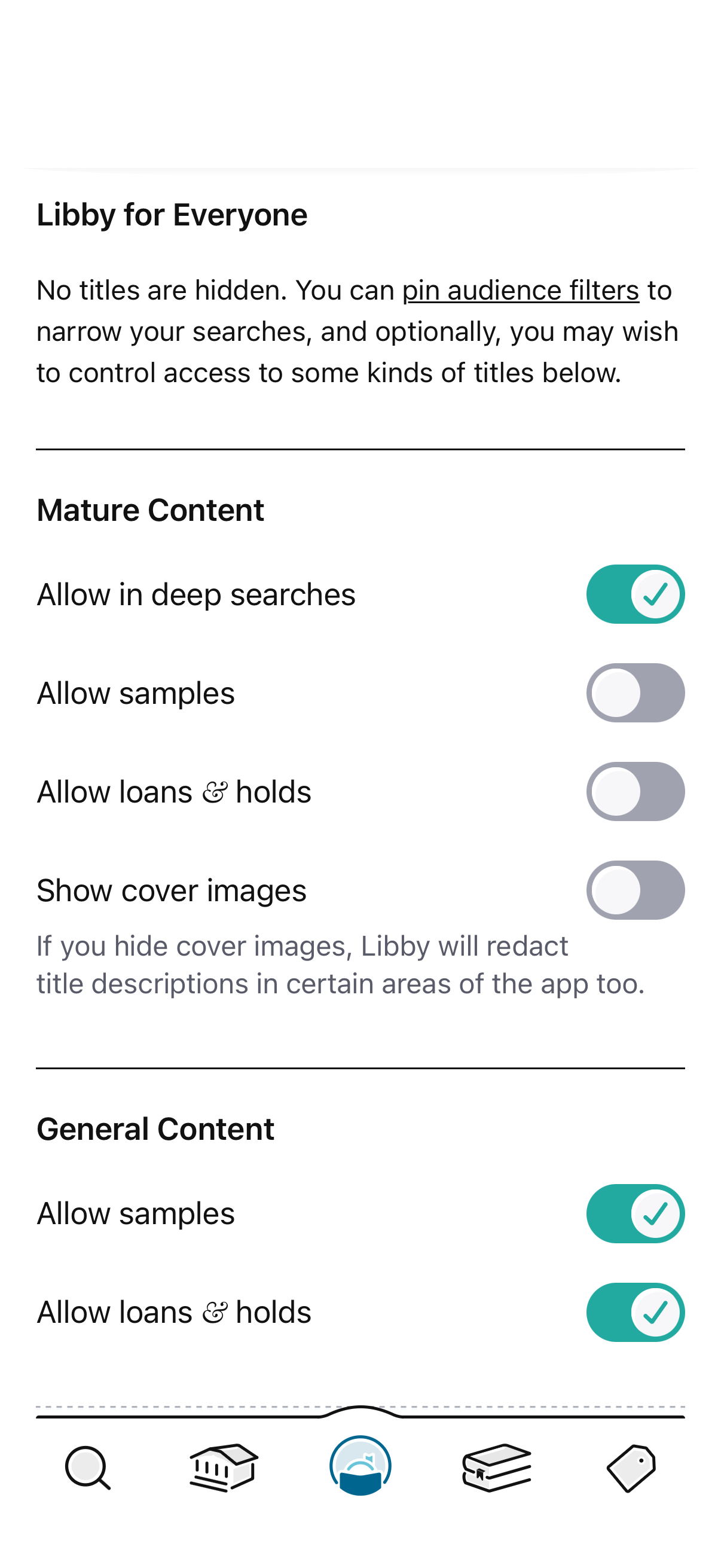
If you want to see only general content in your library, consider pinning an audience filter instead, which hides titles in all other audience categories.