
Libby Help
Renaming your library card and changing a library's colors
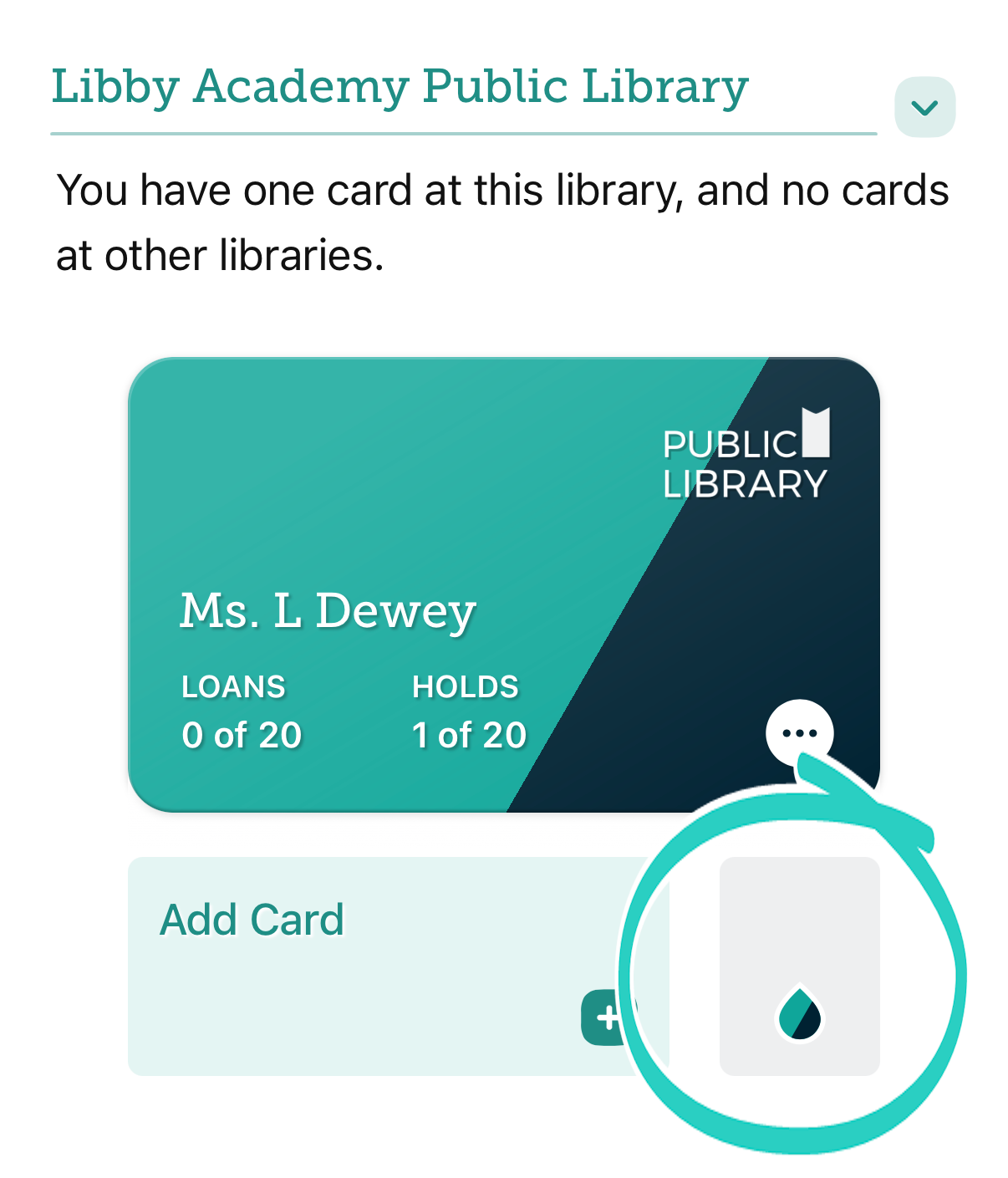
Go to Menu > Cards to see your library card number, rename your library card, and change your library colors.
Note: To switch between saved libraries on this screen, tap the drop-down icon next to your library name and choose another saved library.
- To rename your card: Tap
 (on your card), tap Rename Card, rename your card, then tap Save.
 - To change your library colors: Tap the color-drop button (next to Add Card) and select two colors.
Last updated: September 03 2026